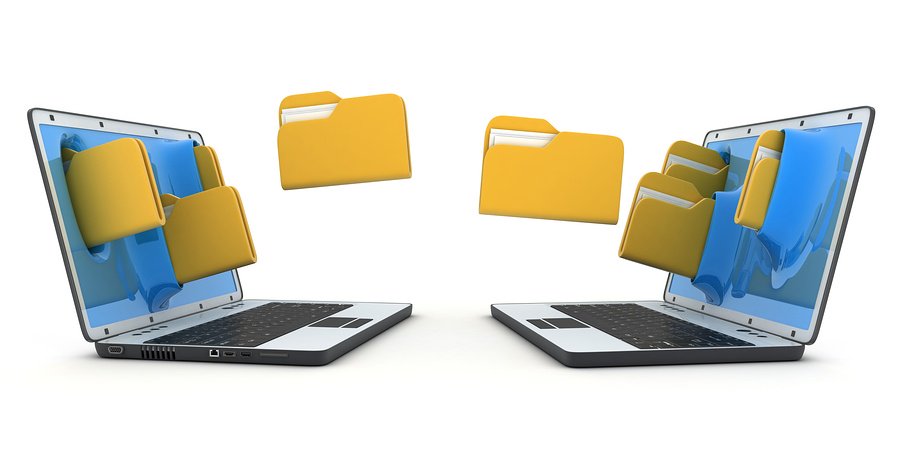
 Your old computer is outdated and it’s time to upgrade. You spend time researching the right machine and finally, you find just the right one. You open up the box and breathe in the scent of unused hard drives, empty caches, and perfect processing speed. But, new computers don’t stay without baggage very long.
All of your files, music, pictures, and videos are sitting on your old machine, useless unless you do something with them. This is the part everyone hates. Moving all that data can be a headache. Here are some simple tips on ways to transfer files from Howtogeek.com.
Use a File-Transfer Tool
There are many file-transfer utilities for automatically moving your files, settings, and programs to a new computer. You’ll have to install the programs you use on your new computer afterwards, but these will help you move your files and some important settings over. Those personal files are the most important thing to migrate, anyway.
Use a Backup and Restore Tool
You should be regularly backing up your files. Assuming you are, you could just perform one final backup of your PC and restore the files from that backup onto your new computer.
But, if you’re backing up to an external drive with practically any tool — from integrated Windows backup features to Time Machine on a Mac or a third-party backup solution — you should just be able to restore those files onto your new PC. On Macs, the Migration Assistant can also import files from a Time Machine backup.
Just Copy the Files
The manual solution works for basic backups, and it works for basic file transfer too. Connect a sufficiently large external hard drive to your old computer and drag-and-drop (or copy-and-paste) all the files you need from your old computer onto the drive. Disconnect the drive from the old computer, connect it to the new computer, and move the files onto the new computer.
Yes, it should be that simple — and, if you organize your files properly so you know where everything important is on your computer, you can quickly locate them to copy them over manually.
This will obviously just grab your personal files, and not important settings. If you want to copy web browser bookmarks over, for example, you may want to export them from your browser and then import them into the browser on your new computer. Modern browsers like Chrome and Firefox (and Internet Explorer, but only on Windows 8) have sync features that can automatically migrate these to a PC if you log in with the same account on each.
Cloud Storage Tools
Cloud storage services can make it easy to migrate to a new PC, too. You likely rely on a webmail service like Gmail, Outlook.com, or Yahoo! Mail. If you don’t, your email server probably at least uses IMAP instead of POP3. This means your email is stored securely on a server somewhere, so you don’t have to worry about migrating your email to your new computer unless you still use POP3 to access it.
The same is true for other services that store your files, settings, and other data online. Cloud storage services like Dropbox, Google Drive, and Microsoft OneDrive work well for this. Install the client on your PC and dump your files into it. Log in to that same account on your other PC and it’ll download the files if they’re stored online.
Using any of these methods should help you transfer your files simply. If setting up computers isn’t a task you’re ready to take on, call the PC Repair and Maintenance Experts at Great Lakes Computer. We can help you with all of your computer, printer, server, and POS system repair and maintenance.

 Lots of people still don’t really understand cloud computing as a term. Whether you think you understand the cloud or not, you are already using it – Google, Twitter, Facebook, DropBox – all cloud software. One of the biggest cloud apps is Office 365. Many companies are singing its praises for giving their teams tremendous mobility, but maybe you’re not so sure. Here are some basic pros and cons that come along with the Microsoft Office 365 application from the leading organization in simplifying complex topics,
 After years of providing server monitoring services, we learned to spot some common red flags. Some signs might seem subtle, but others are fairly obvious. If your business relies upon your company’s computer server for daily work, you might want to pay attention to what your machines are telling you. Consider these common signs that let you know that you may need server maintenance.
 Can you imagine how much smoother your business could run if you never had to worry about printer trouble or printing costs again? Managed Print Services (MPS) help manage every aspect of business printing, from using printers more efficiently to ensuring that machines get proactively serviced and supplied.
 IT experts have predicted cloud computing will impact over
 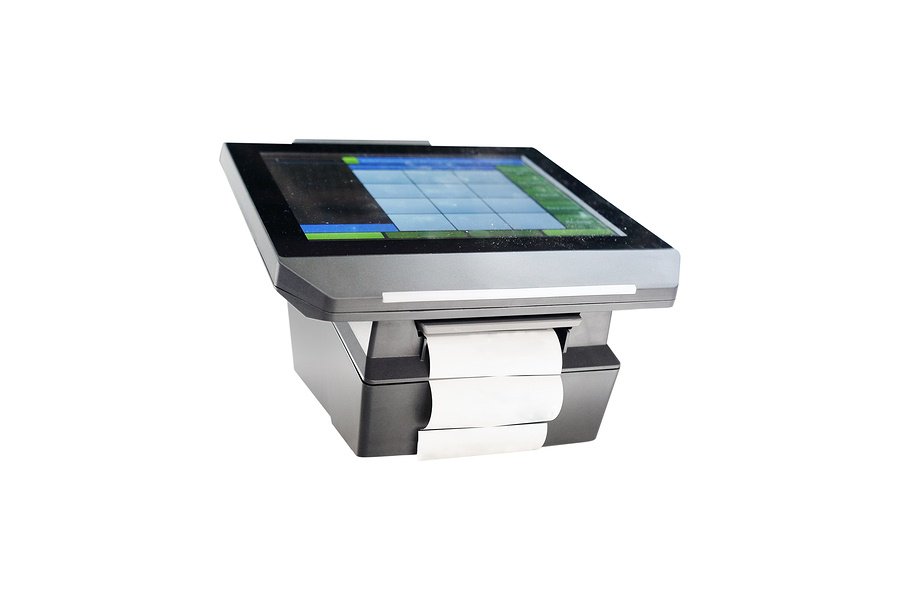 Many businesses are heavily dependent upon the performance of their POS system, which makes it paramount for them to take all possible steps to ensure that it is always operating in good condition. When POS systems fail due to misuse or malfunction it often results in frustrated customers leaving without a purchase, employee productivity plummeting, and your reputation taking a serious hit.


